Forever Japanese
Download free無料ダウンロード
An addon for World of Warcraft®: ForeverWorld of Warcraft®: Forever 用アドオン

Play WoW Forever in Japanese.

WoW Forever を日本語で遊ぶ。

Quests, NPC dialogue, books, tooltips and the game's own windows, in Japanese. Hold Alt and the game's English comes back.
Let go and the Japanese returns.

クエスト、NPC の会話、本、ツールチップ、ゲームのウィンドウを日本語で。Alt を押している間はゲーム本来の英語に戻ります。
離すと日本語に戻ります。

  • Free and open source
  • 無料・オープンソース
  • Japanese voice for 14,000+ lines
  • 14,000 行以上の日本語音声
  • 5,068Questsクエスト
  • 11,382NPC linesNPC の会話
  • 923Book pages本のページ
  • 209Letter pages手紙のページ
  • 10,916Item tooltipsアイテムのツールチップ
  • 20,346Spell tooltips呪文のツールチップ
  • 16,115Interface linesインターフェース

一Read

一読む

Japanese first. English one key away.

まずは日本語。英語はキーひとつで。

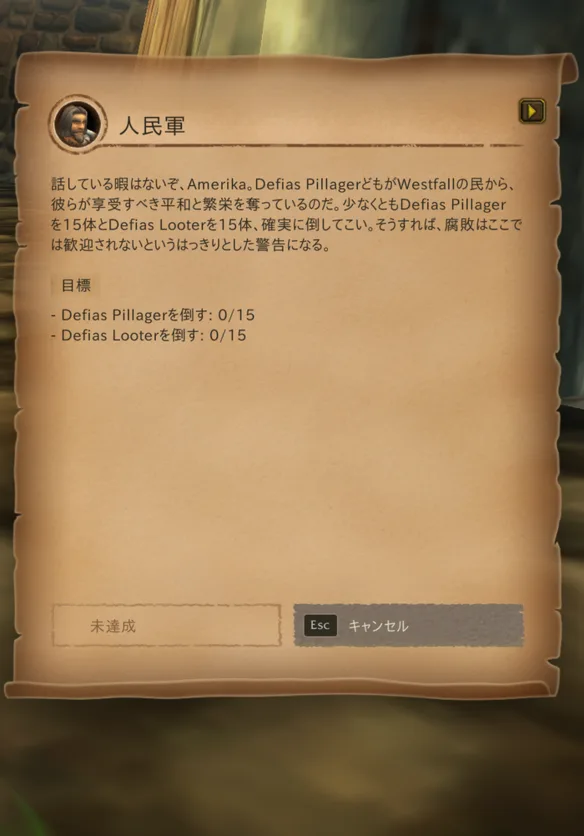
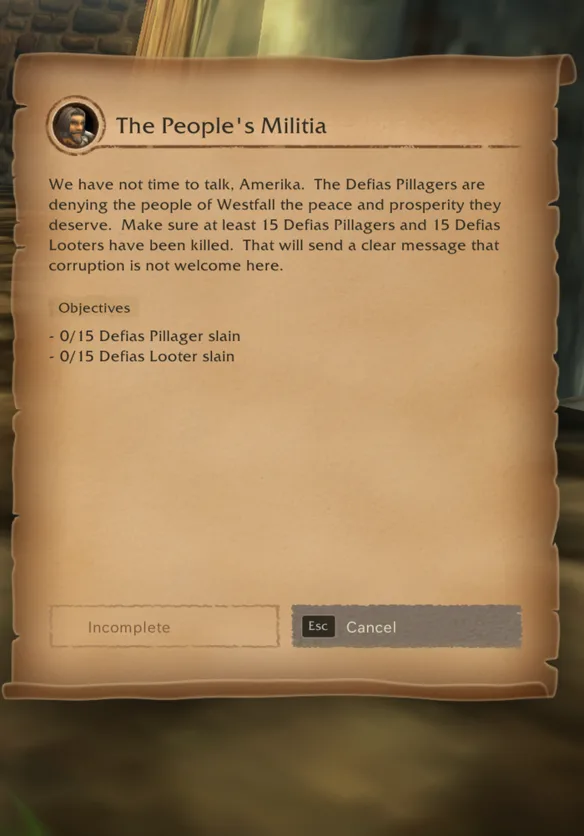
Wherever Japanese is showing, holding Alt shows the game's own English until you let go. Try it on the window here.

日本語が表示されている場所で Alt を押している間は、ゲーム本来の英語が表示されます。こちらのウィンドウで試してみてください。

  • Any key you like

    好きなキーで

    Alt is the default. Ctrl, Shift, one side of either, a letter or a mouse button can take its place.

    初期設定は Alt。Ctrl、Shift、その左右どちらか、文字キー、マウスボタンにも変えられます。

  • Names stay in English

    名前は英語のまま

    People, places, creatures, items and spells keep their names, and quests keep their titles, so what you read is what other players say and what guides call things.

    人、場所、クリーチャー、アイテム、呪文は名前を変えず、クエストのタイトルも英語のままなので、ほかのプレイヤーの言葉や攻略サイトの呼び方と一致します。

  • The game's own windows

    ゲーム本来のウィンドウ

    The windows, the buttons and the layout are the game's. The addon changes the words.

    ウィンドウもボタンもレイアウトもゲームのまま。アドオンが変えるのは言葉だけです。

A quest window in Japanese, with names such as Conservator Ilthalaine left in English The same quest window in the game's English
Drag the handle, or hold the button the way you hold Alt in the game.つまみを動かすか、ゲームで Alt を押すときと同じようにボタンを押し続けてください。

二Every word

二すべての言葉

Made for reading the game, not just playing it.

遊ぶだけでなく、読むためのアドオン。

Popup dictionary

ポップアップ辞書

Point at a Japanese word in quest text, NPC dialogue, a book page or a window label. A small popup shows how to read it, its dictionary form, and a short English meaning of the word as the sentence uses it.

クエスト文、NPC の会話、本のページ、ウィンドウのラベルの日本語にマウスを合わせると、小さなポップアップに読み方、辞書形、その文での短い英語の意味が表示されます。
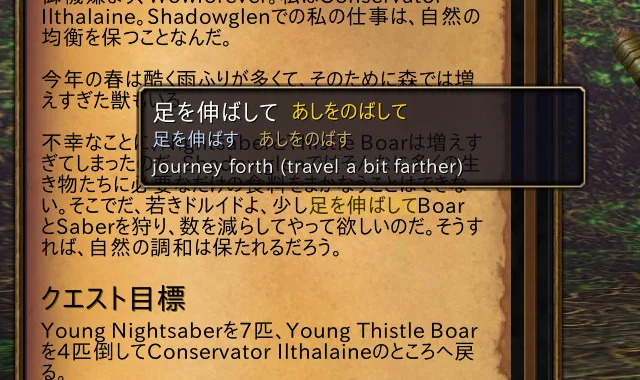
The popup over a word in a quest window, with its reading and meaning

Translated by people first

まず人の手による翻訳

Quest text comes from the hand-written translations of the WoWJapanizer, QuestJapanizer and CraftJapanizer translators wherever they exist. The rest is machine-drafted, marked as such, and updated as players send fixes.

クエスト文は、WoWJapanizer、QuestJapanizer、CraftJapanizer の翻訳者による手書きの翻訳があるものはそれを使っています。それ以外は機械下書きで、そのことを明記し、プレイヤーの修正報告で更新していきます。

Every Forever patch's new text is added as it lands.

Forever のパッチで追加されたテキストも、出るたびに追加します。

You choose what is translated

翻訳する範囲は自由に

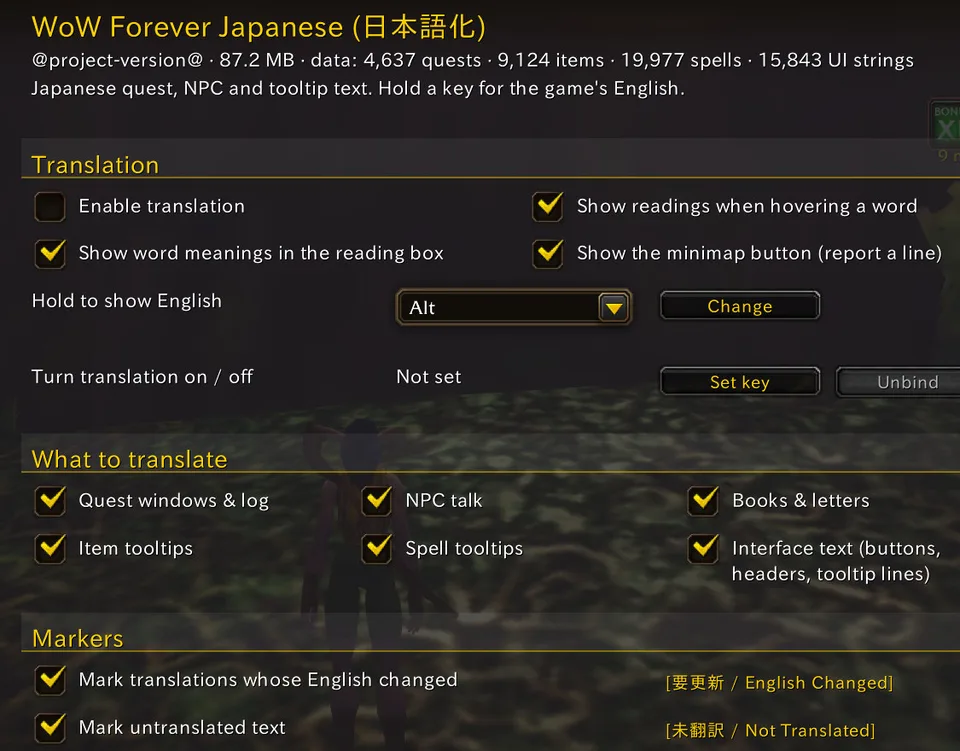
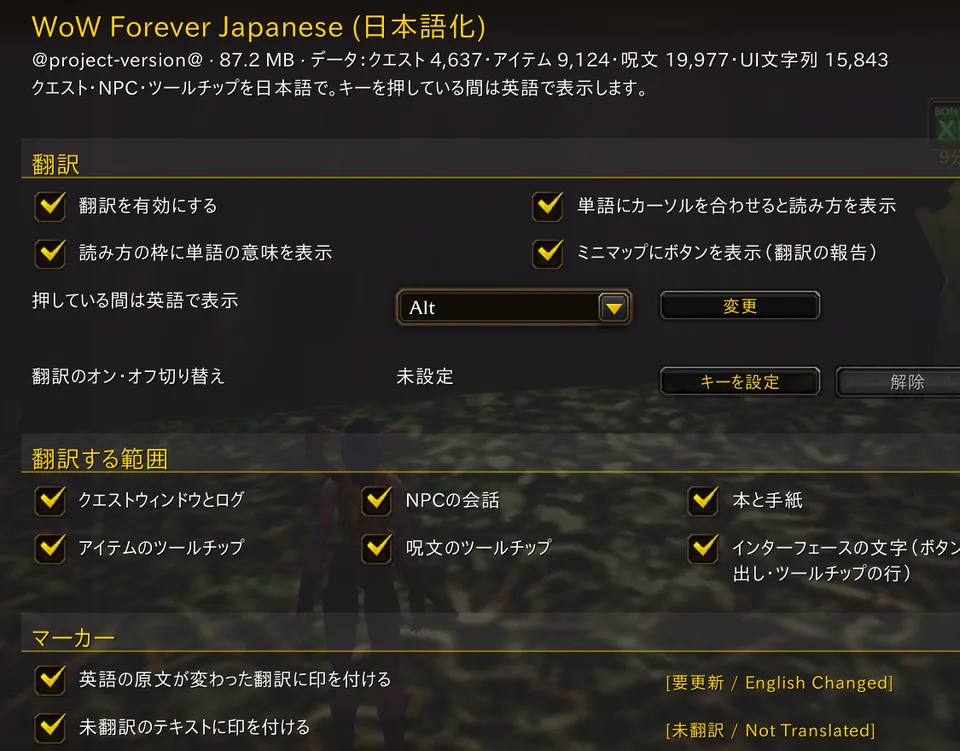
Turn the whole translation on or off, or each area on its own. Change the key you hold for English, set a key that switches translation on and off, and hide the markers, the popup dictionary or the minimap button.

翻訳全体を一括で、または項目ごとにオン・オフできます。英語表示のキーの変更、翻訳オン・オフ切り替えキーの設定、マーカー、ポップアップ辞書、ミニマップボタンの非表示も可能です。

Open Esc › Options › AddOns › WoW Forever Japanese, or type /wfj.

Esc › オプション › AddOns › WoW Forever Japanese を開くか、/wfj と入力します。

One settings page, in the game's own Options

設定はゲーム本来のオプション画面に

Every area has its own switch: quest windows and the log, NPC talk, books and letters, item and spell tooltips, and interface text on buttons, headers and tooltip lines.

クエストウィンドウとクエストログ、NPC の会話、本と手紙、アイテムと呪文のツールチップ、ボタンや見出し、ツールチップの行のインターフェース文字列。項目ごとにスイッチがあります。

The addon's settings page in the game's Options windowThe addon's settings page in the game's Options window, in Japanese

Works with Dialogue UI

Dialogue UI に対応

When you have Dialogue UI installed, its quest, NPC talk and book windows show the Japanese, with the same key to see the English, the popup dictionary and the voice. Its buttons, headings and item tooltips use the game's Japanese words; a few words of its own stay English.

Dialogue UI を入れている場合、そのクエスト、NPC の会話、本のウィンドウも日本語になり、同じキーで英語を表示でき、ポップアップ辞書と音声も使えます。ボタン、見出し、アイテムのツールチップはゲームの日本語の言葉を使い、Dialogue UI 独自のいくつかの言葉は英語のままです。

Dialogue UI is not needed and not included.

Dialogue UI は必須ではなく、同梱もしていません。

A Dialogue UI quest window in Japanese
The same window while Alt is held

三Listen

三聞く

Every NPC speaks Japanese.

NPC が日本語で話す。

With the free voice download, the addon reads its Japanese aloud: quest offers, progress and turn-ins, NPC greetings and talk, and book and letter pages, over 14,000 lines. Each NPC speaks in a voice modelled on its own voice in the game.

無料の音声データを入れると、アドオンが日本語を読み上げます。クエストの依頼、進行中と完了の文、NPC のあいさつと会話、本や手紙のページまで、14,000 行以上。どの NPC も、ゲーム本来の声をもとにした声で話します。

0:00 / 0:00

The voice panel

音声パネル

While a line plays, a panel shows who is speaking and the Japanese a sentence at a time, with the popup dictionary on every word. Close the window and the line keeps playing. Hold Alt and the panel shows the English.

再生中は、話している NPC と日本語の文を一文ずつパネルに表示し、どの単語にもポップアップ辞書が使えます。ウィンドウを閉じても再生は続きます。Alt を押すとパネルに英語が表示されます。

A separate, free download

別の無料ダウンロード

The voice is about 1.2 GB. Search the CurseForge app for WoW Forever Japanese Voice and click Install.

音声は約 1.2 GB。CurseForge アプリで WoW Forever Japanese Voice を検索してインストールしてください。

How to add it追加の方法

四Study

四学ぶ

Keep the words you meet.

出会った言葉を、自分のものに。

Save a word from any sentence you read, take it to Anki, or study it right in the game.

読んだ文から単語を保存して、Anki に送ったり、ゲームの中で学習したり。

Save words for Anki

Anki 用に単語を保存

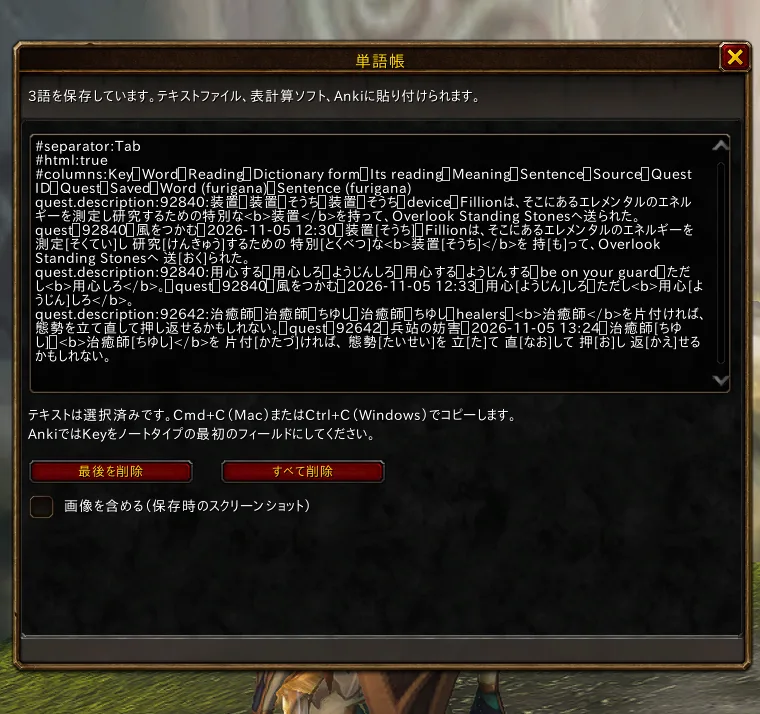
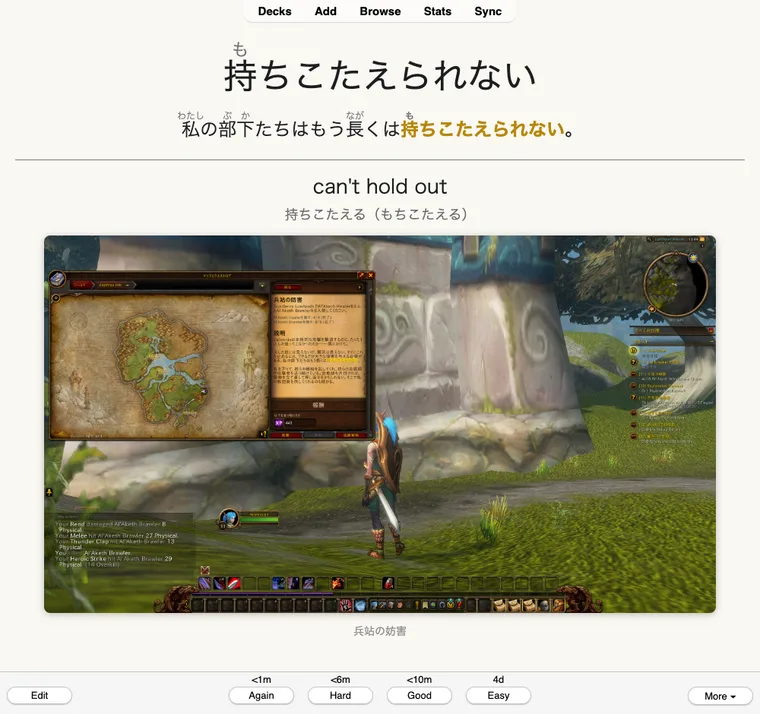
While the popup shows a word, Ctrl+click it to save it with its reading, meaning and the sentence it came from. The list stays from one session to the next and is shared by your characters.

ポップアップに単語が出ている間に Ctrl+クリックすると、読み方、意味、元の文と一緒に保存されます。リストはセッションをまたいで残り、キャラクター間で共有されます。

  • Type /wfj words to copy the whole list as text for Anki, a spreadsheet or a text file, with furigana for your cards.
  • /wfj words と入力すると、リスト全体を Anki、スプレッドシート、テキストファイル用のテキストとしてコピーできます。カード用のふりがな付きです。
  • A screenshot taken when you saved the word can come along.
  • 保存したときのスクリーンショットも一緒に使えます。
  • Pick Ctrl, Shift, Cmd (Mac) or a plain click on the Words settings page.
  • Ctrl、Shift、Cmd(Mac)、通常クリックから、Words 設定ページで選べます。
The word list window in the game
An Anki card made from the export

Study them in the game

ゲームの中で学習

A small tab at the edge of the screen says how many saved words are due. Click it for one card at a time: the word in its sentence, then its reading and meaning, and Again or Good. The same FSRS schedule Anki uses decides when the word comes back.

画面の端の小さなタブに、復習する単語の数が表示されます。クリックするとカードが一枚ずつ出ます。文の中の単語、次に読み方と意味、そして Again か Good。Anki と同じ FSRS のスケジュールで、次に出す日が決まります。

  • The card collapses to the tab, moves anywhere and hides in combat.
  • カードはタブにたたむことができ、好きな場所に動かせて、戦闘中は隠れます。
  • Open it with /wfj study, the minimap button's menu or the Words settings page, where you also choose how many new words to start per day.
  • /wfj study、ミニマップボタンのメニュー、Words 設定ページから開けます。1 日に始める新しい単語の数もそこで決められます。
Studying English?

英語を勉強していますか?

Set the game text to English first and the game stays in English. Hold the key to see the Japanese, and point at an English word to see how it is said and the Japanese word for it.

ゲームの文字を「英語優先」にすると、ゲームは英語のままです。キーを押している間は日本語が表示され、英単語にカーソルを合わせると発音と日本語の意味が出ます。
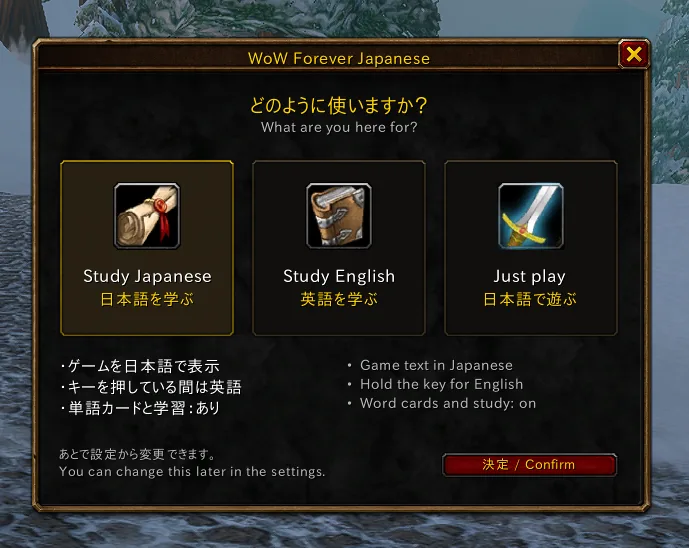
  • A welcome window asks what you are here for: study Japanese, study English or just play.
  • 最初に開くウィンドウで、日本語を学ぶ、英語を学ぶ、ただ遊ぶ、から使い方を選べます。
  • Saved words and the study card work English first too.
  • 単語の保存と学習カードも、英語を先に表示します。
The welcome window with its three choices: Study Japanese, Study English, Just play

The same game, in Japanese.

同じゲームを、日本語で。

The windows, the buttons and the layout are the game's own. The addon changes the words.

ウィンドウもボタンもレイアウトもゲームのまま。アドオンが変えるのは言葉だけです。

五Install

五インストール

Three steps, a few minutes.

3 ステップ、数分で。

Get it from CurseForge

CurseForge から入手

  1. Open the CurseForge app, choose World of Warcraft, and search for WoW Forever Japanese.
  2. CurseForge アプリを開き、World of Warcraft を選んで WoW Forever Japanese を検索します。
  3. Make sure your Forever install is the one selected at the top of the game page.
  4. ゲームページの上部で Forever のインストールが選ばれていることを確認します。
  5. Click Install.
  6. インストールをクリックします。
Get it on CurseForgeCurseForge で入手

Turn it on in the game

ゲーム内で有効にする

At the character select screen, click AddOns, make sure WoW Forever Japanese is ticked, and log in.

キャラクター選択画面で AddOns をクリックし、WoW Forever Japanese にチェックが入っていることを確認してログインします。

The AddOns list with WoW Forever Japanese ticked

Log in and read

ログインして読む

Quests, NPC talk, books, tooltips and windows are in Japanese from the first screen. Hold Alt for the English, point at a word for its reading, and type /wfj for the settings.

最初の画面から、クエスト、NPC の会話、本、ツールチップ、ウィンドウが日本語です。Alt で英語、単語にマウスを合わせると読み方、/wfj で設定が開きます。

Optional extras

追加でおすすめ

Recommendedおすすめ

Japanese voice

日本語音声

A separate, free download of about 1.2 GB. Search the CurseForge app for WoW Forever Japanese Voice and click Install; the app keeps every voice pack up to date. One setting on the Voice page turns it off.

約 1.2 GB の無料の別ダウンロードです。CurseForge アプリで WoW Forever Japanese Voice を検索してインストールすると、アプリがすべての音声パックを最新に保ちます。音声設定のスイッチひとつでオフにできます。

Get the voice音声を入手

Dialogue UI

Dialogue UI

A favourite quest and NPC window. With it installed, its windows show the Japanese, with the same Alt key, popup dictionary and voice. Not needed, and not included.

人気のクエスト・NPC ウィンドウ。入れておくと、そのウィンドウも日本語になり、同じ Alt キー、ポップアップ辞書、音声が使えます。必須ではなく、同梱もしていません。

Get Dialogue UIDialogue UI を入手
Install by hand手動でインストール
  1. Download the zip of the latest release from the releases page.
  2. リリースページから最新リリースの zip をダウンロードします。
  3. Find your Forever client's folder: open the Battle.net app, choose World of Warcraft, pick the Forever version, and use Show in Explorer (Windows) or Show in Finder (macOS) from the gear menu next to the Play button. Inside it, open Interface, then AddOns (create AddOns if it is not there yet).
  4. Forever クライアントのフォルダを開きます。Battle.net アプリで World of Warcraft を選び、Forever のバージョンを選んで、プレイボタン横の歯車メニューから「エクスプローラーで表示」(Windows)または「Finder で表示」(macOS)を選びます。中の Interface、次に AddOns を開きます(AddOns がなければ作成します)。
  5. Unzip the download into that AddOns folder.
  6. ダウンロードした zip をその AddOns フォルダに展開します。
  7. Check the folder name: AddOns must hold a folder called exactly WoWForeverJapanese, not a folder inside another folder.
  8. フォルダ名を確認します。AddOns の中に、ちょうど WoWForeverJapanese という名前のフォルダがあること。フォルダの中にさらにフォルダが入っていないこと。

六Community

六コミュニティ

Made better by the players who use it.

使うプレイヤーと一緒に、良くしていく。

Talk with other players on Discord, report a line that reads wrong, send in the English the addon has not seen yet, or tell us about a bug or an idea. Every fix that ships is credited by the name you choose.

Discord でほかのプレイヤーと話す、おかしな行を報告する、アドオンにまだない英語を送る、バグやアイデアを伝える。採用された修正には、あなたの選んだ名前がクレジットされます。

Join the Discord

Discord に参加

The place to ask, share screenshots and talk about learning Japanese in the game.

質問、スクリーンショットの共有、ゲームで日本語を学ぶ話をする場所です。

  • #translation-fixesPost a line that reads wrong, or a screenshot of it. No GitHub account needed.
  • #translation-fixesおかしな行やそのスクリーンショットを投稿してください。GitHub アカウントは不要です。
  • #bug-reportsPost what happened, with your BugSack errors if you have them.
  • #bug-reports何が起きたかを、BugSack のエラーがあれば一緒に投稿してください。
Open the DiscordDiscord を開く

Bugs and ideas

バグとアイデア

A bug report arrives with the build, the version and the addon's Lua errors filled in.

バグ報告には、ビルド、バージョン、アドオンの Lua エラーが自動で入ります。

  1. Type /wfj bug, pick Report a bug or idea in the 字 button's menu, or click it on the About & Help page of the settings.
  2. /wfj bug と入力するか、字ボタンのメニューで「バグやアイデアを報告」を選ぶか、設定の About & Help ページでクリックします。
  3. Choose Bug or Idea, then open the link in your web browser.
  4. Bug か Idea を選び、リンクをウェブブラウザで開きます。
  5. Write what happened and submit the issue. For a bug, click I sent it.
  6. 何が起きたかを書いて issue を送信します。バグの場合は「送信した」をクリックします。

Open source

オープンソース

The addon, its translations and its tools are on GitHub under GPL-2.0-or-later. Reports, fixes and ideas are public issues there.

アドオン、翻訳、ツールは GitHub で GPL-2.0-or-later のもと公開しています。報告、修正、アイデアはそこで公開の issue になります。

View on GitHubGitHub で見る

Support the addon

アドオンを応援する

The addon is free and always will be. If it has been useful to you and you want to give something back, you can donate. Donations go toward fixing bugs, adding new features and keeping the translation up to date. Nothing is required.

アドオンは無料で、これからもずっと無料です。役に立ったので何かお返しがしたい、という方は寄付できます。いただいた寄付は、バグの修正、新機能の追加、翻訳の更新に使います。寄付は必須ではありません。

Donate寄付する

Spotted a bad translation?

おかしな翻訳を見つけたら

Report it from inside the game, in three clicks. If your Japanese is used, you are credited by the name you choose.

ゲームの中から、3 クリックで報告できます。あなたの日本語が採用されると、選んだ名前でクレジットされます。

Lines marked [未翻訳 / Not Translated] have no Japanese yet, and [要更新 / English Changed] means the English changed since the line was translated: both are worth a report or a collector send.

[未翻訳 / Not Translated] の行にはまだ日本語がなく、[要更新 / English Changed] は翻訳後に英語が変わったことを示します。どちらも報告やコレクターの送信に向いています。

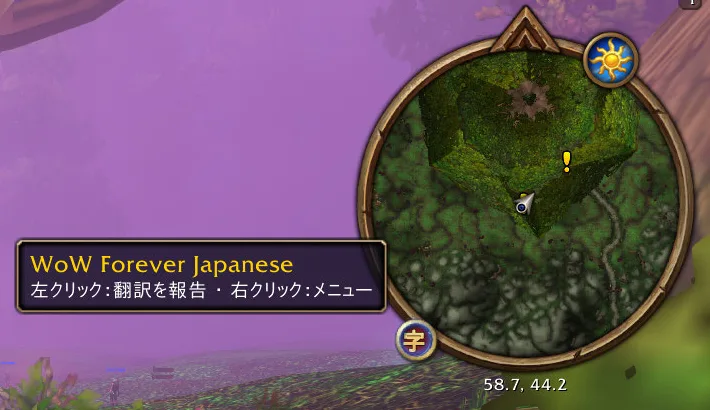
  1. The 字 button on the minimap

    1Open the report window

    1報告ウィンドウを開く

    Click the 字 button on the minimap, or type /wfj fix. Right-click it for a small menu: translation on or off, report a line, report a bug or idea, settings, hide the button.

    ミニマップの字ボタンをクリックするか、/wfj fix と入力します。右クリックすると小さなメニューが開きます。翻訳のオン・オフ、行の報告、バグやアイデアの報告、設定、ボタンを隠す。

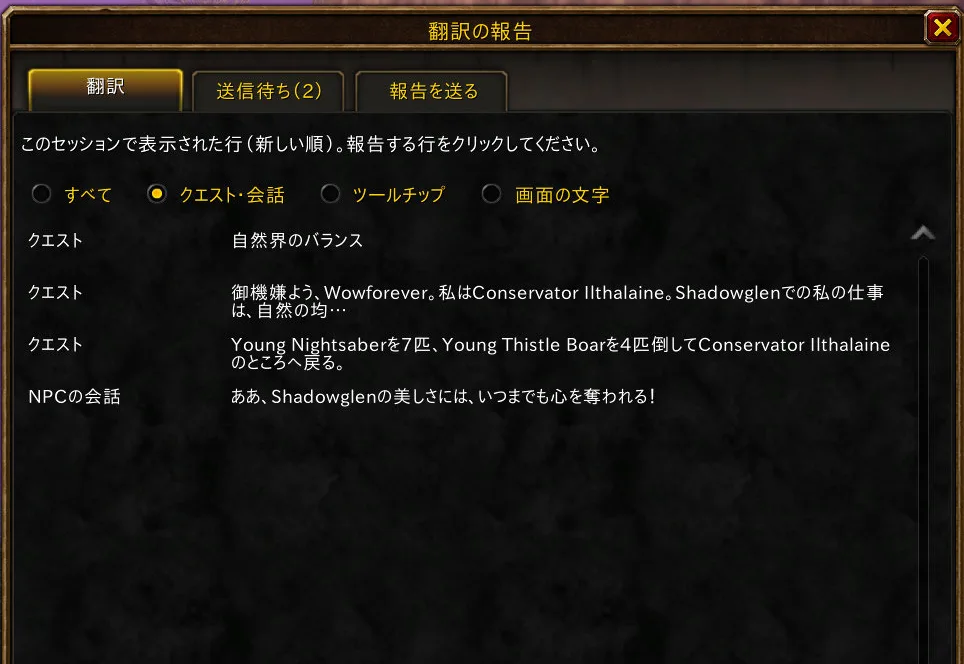
  2. The report window listing recent lines

    2Pick the line

    2行を選ぶ

    The window lists the lines the addon has just shown you, newest first. Narrow it to quests and dialogue, tooltips or on-screen text, then click the line that reads wrong. Nothing has to be typed or copied from the game.

    アドオンが直前に表示した行が、新しい順に並びます。クエストと会話、ツールチップ、画面の文字に絞り込んで、おかしな行をクリックします。ゲームから何かを入力したりコピーしたりする必要はありません。

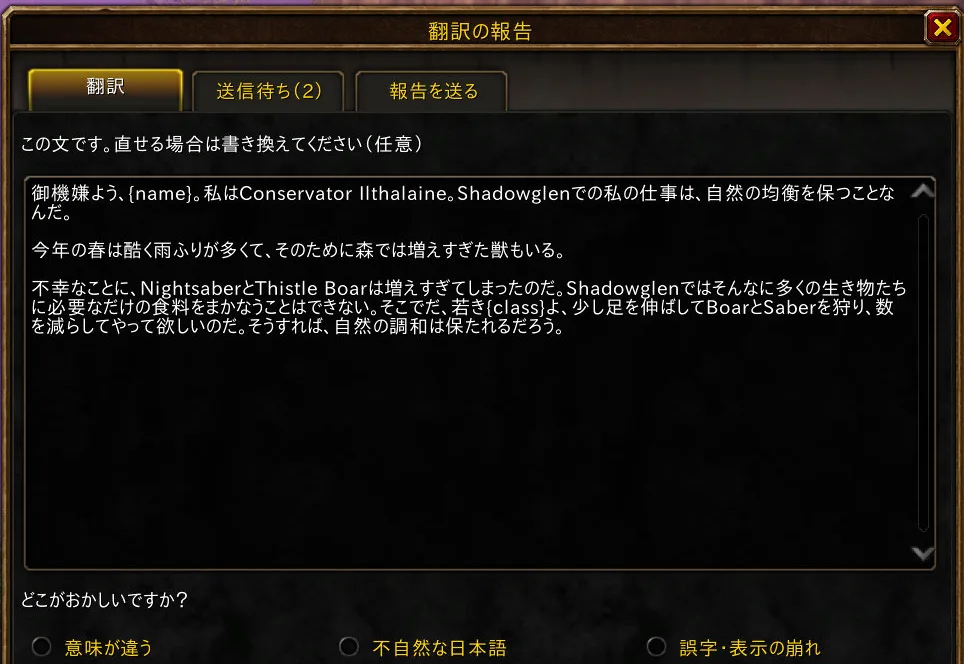
  3. Choosing what is wrong and writing a better line

    3Say what is wrong and send it

    3どこがおかしいかを伝えて送る

    Choose what is wrong and, if you like, write a better line. Saved fixes wait in the second tab. Then copy the report into a translation report. A check answers in a comment within a minute.

    どこがおかしいかを選び、よければよりよい行を書きます。保存した修正は 2 つ目のタブに溜まります。最後に報告をコピーして翻訳報告に貼り付けます。1 分以内にチェックがコメントで返事をします。

Help translate what is left

残りの翻訳に協力する

Some English reaches the game only while someone plays. The addon notes the lines it has no Japanese for, and you can send them in with a few clicks.

英語の中には、誰かがプレイしているときにしかゲームに届かないものがあります。アドオンは日本語がない行を記録していて、数クリックで送ることができます。

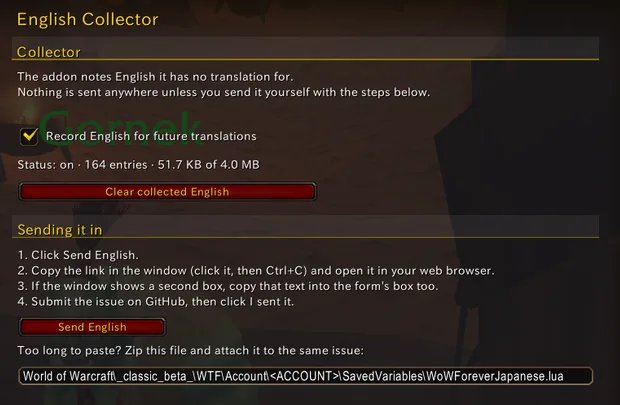
  1. Open Esc › Options › AddOns › WoW Forever Japanese › English Collector and click Send English, or type /wfj collector send.
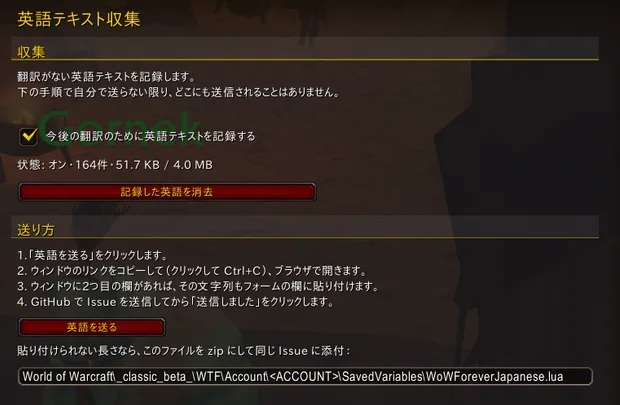
  2. Esc › オプション › AddOns › WoW Forever Japanese › English Collector を開いて Send English をクリックするか、/wfj collector send と入力します。
  3. Copy the link in the window and open it in your web browser. A GitHub issue form opens filled in. If the window shows a second box, paste that text into the form too.
  4. ウィンドウのリンクをコピーしてウェブブラウザで開くと、入力済みの GitHub の issue フォームが開きます。ウィンドウに 2 つ目の欄があれば、そのテキストもフォームに貼り付けてください。
  5. Submit the issue, then click I sent it in the game. The next send holds only new lines.
  6. issue を送信したら、ゲーム内で「送信した」をクリックします。次回の送信には新しい行だけが入ります。

What it notes: quest text, NPC dialogue with the ids of the NPCs who said it, item and spell descriptions, and NPC names with no translation yet, plus your class and race, because some lines change with them. Never your character's name, account, realm or location. Nothing leaves your computer unless you send it. It is on by default and can be turned off under English Collector.

記録する内容:クエスト文、NPC の会話とそれを話した NPC の ID、アイテムと呪文の説明、まだ翻訳のない NPC 名。一部の行は職業と種族で変わるため、それも記録します。キャラクター名、アカウント、レルム、現在地は記録しません。送信しない限り、何もパソコンの外には出ません。初期設定でオンで、English Collector の設定でオフにできます。

The English Collector's send windowThe English Collector's send window, in Japanese

八Watch

八動画

Short videos from the channel.

チャンネルのショート動画。

A minute each: how it started, how words go to Anki, and a quest read line by line.

どれも約 1 分。作ったきっかけ、単語を Anki に送る方法、クエストを一行ずつ読む回。

More on YouTubeYouTube でもっと見る

九Questions

九質問

Frequently asked.

よくある質問。

Why is a buff's tooltip sometimes in English?バフのツールチップが英語になるのはなぜ?

There are two cases.

2 つの場合があります。

  • In combat. The game hides from addons which buff an icon under the minimap is, so its tooltip stays in the game's English until the fight ends. Then it is Japanese again.
  • 戦闘中。ミニマップの下のアイコンがどのバフかをゲームがアドオンに知らせないため、戦闘が終わるまでツールチップはゲームの英語のままです。終われば日本語に戻ります。
  • On the target frame. Buffs and debuffs there always stay English: the game draws their tooltip in a window no addon is allowed to touch.
  • ターゲットフレーム。そこのバフとデバフは常に英語です。ゲームはそのツールチップを、どのアドオンも触れないウィンドウに表示するためです。

Your own buffs under the minimap and those on party frames are Japanese out of combat. Spell tooltips on your action bar stay Japanese in combat, the cooldown countdown too.

ミニマップの下の自分のバフとパーティーフレームのものは、戦闘外では日本語です。アクションバーの呪文のツールチップは、クールダウンの残り時間も含めて戦闘中も日本語のままです。

Why are names still in English?名前が英語のままなのはなぜ?

On purpose. Names of people, places, creatures, items and spells are never changed, and neither is a quest's title, so what you read matches what other players say and what guides call things. The quest's text under the title is Japanese.

意図的です。人、場所、クリーチャー、アイテム、呪文の名前は変えず、クエストのタイトルも英語のままなので、読む内容がほかのプレイヤーの言葉や攻略サイトの呼び方と一致します。タイトルの下の本文は日本語です。

What do the markers mean?マーカーの意味は?

[未翻訳 / Not Translated] means the line has no translation yet and is shown in the game's English. [要更新 / English Changed] means the English changed after the line was translated. Both can be turned off in the settings.

[未翻訳 / Not Translated] はその行にまだ翻訳がなく、ゲームの英語で表示されていることを示します。[要更新 / English Changed] は翻訳の後に英語が変わったことを示します。どちらも設定でオフにできます。

Why is some text still in English?英語のままの文があるのはなぜ?

Some English is not in the game's files at all. NPC dialogue, a quest's text when you check its progress or hand it in, and what NPCs say in chat come from the server only when a player sees them. A line nobody has recorded yet has no Japanese, so it stays in English with the Not Translated marker.

英語の中には、ゲームのファイルにまったく含まれないものがあります。NPC の会話、進行中や完了時のクエスト文、NPC がチャットで話す内容は、プレイヤーが目にしたときにだけサーバーから届きます。まだ誰も記録していない行には日本語がないため、Not Translated マーカー付きの英語のままです。

The addon notes them as you play. Once someone sends them in, an update translates them.

アドオンはプレイ中にそれを記録しています。誰かが送ってくれれば、アップデートで翻訳されます。

Which game does it work with?対応しているゲームは?

World of Warcraft: Forever only. It is built for that client and its text.

World of Warcraft: Forever 専用です。そのクライアントとテキストに合わせて作っています。

Does it work with Dialogue UI?Dialogue UI に対応している?

Yes. Its quest, NPC talk and book windows show the Japanese, with the same key to see the English, the popup dictionary and the voice. Dialogue UI is not needed and not included.

はい。そのクエスト、NPC の会話、本のウィンドウも日本語になり、同じキーで英語、ポップアップ辞書、音声も使えます。Dialogue UI は必須ではなく、同梱もしていません。

Does it work with Ellesmere UI?Ellesmere UI に対応している?

Partly. Ellesmere UI draws much of the game's interface itself, and this addon does not translate Ellesmere UI: its bars, frames, options and chat window stay English. What the addon does is keep its Japanese readable in the game windows Ellesmere UI restyles (the character window, settings, the mailbox, NPC and quest windows). Ellesmere UI's fonts have no Japanese letters, so in its options (/eui), on the Fonts page, set Global Font to "WoW Forever Japanese". For Japanese chat, turn its Chat module off in the addon list. Ellesmere UI is not needed and not included.

一部だけです。Ellesmere UI はゲームのインターフェースの多くを自分で描きますが、このアドオンは Ellesmere UI 自体を翻訳しません。Ellesmere UI のバー、フレーム、設定、チャットウィンドウは英語のままです。このアドオンの日本語が表示されるのは、Ellesmere UI が描き直すゲームのウィンドウ(キャラクター、設定、メールボックス、NPC やクエストのウィンドウ)です。Ellesmere UI のフォントには日本語の文字がないため、設定(/eui)の Fonts ページで Global Font を「WoW Forever Japanese」にしてください。チャットを日本語にするには、アドオン一覧で Chat モジュールをオフにしてください。Ellesmere UI は必須ではなく、同梱もしていません。

Your next quest, in Japanese.

次のクエストは、日本語で。

Free, open source, and on CurseForge.

無料、オープンソース、CurseForge で配布中。